
Windows
On Windows PCs, there is one great free application for screen recording that I really like: Ezvid (www.ezvid.com). Ezvid is not just a screen recording software, but it is also a video editing software, and even better, it is 100% free. I hope this video roughly teaches you how to use Ezvid.
Mac
On Mac, you have to use 2 different programs to do screen recording, QuickTime & iMovie (which are both built-in), and it's a little bit more complicated than the Windows procedure, so I shall explain this one myself.
- Open Finder (the blue and white smiley face thing) and type in the keywords "quicktime player" in the search bar.
- Double-click on QuickTime Player and it should appear on your dock (the thing below your screen with all the icons)
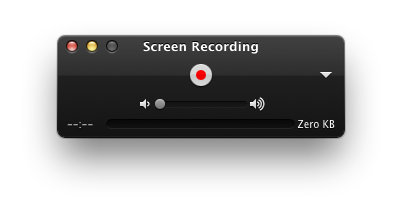
- Right-click the QuickTime Player logo and click New Screen Recording and New Audio Recording.
- Record your screen or whatever you're doing on it and your voice. Remember to save your screen recording.
- Go to iMovie, open a new movie and go to File (at the top right hand corner of the screen) and click Import and search for the name of your screen recording.
- Then go to Finder and search for the name of your audio recording.
- Copy and paste your audio recording to your iMovie video.

No comments:
Post a Comment